ストレス無しでGoogleマップを使ったサイトが作れる「gmaps.js」を使ってみる
ストレス無しでGoogleマップを使ったサイトが作れる「gmaps.js」で知った、gmaps.jsを使ってみます。 
まずここで、ダウンロードします。ソースコードをコピペしてgmaps.jsを作成しました。ところで、google map APIはあまり使ったことがないので、とりあえずそもそもの使い方を確認しよう。
Google Maps APIのそもそもの使い方
GoogleマップのAPIは正式には今はGoogle Maps JavaScript API V3というらしい。これのチュートリアルを見ながらそもそもの使い方を大体覚えたい。チュートリアルにあるHTMLコードをコピペ(コピペした後で、titleを加えて、sensor=set_to_true_or_falseというところを、sensor=falseに変更して、スタイルは別ファイルで定義した。)したところ、地図が表示された。どうもid登録なんかは不要なようだ。その代わり使い方によっては有料になるようだ。
<!DOCTYPE html><html><head><title>gmaps test</title><meta name="viewport" content="initial-scale=1.0, user-scalable=no" /><link rel="stylesheet" type="text/css" href="./css/cake.gmaps.css" /><script type="text/javascript" src="http://maps.google.com/maps/api/js?sensor=false"></script><script type="text/javascript"> function initialize() { var latlng = new google.maps.LatLng(-34.397, 150.644); var myOptions = { zoom: 8, center: latlng, mapTypeId: google.maps.MapTypeId.ROADMAP }; var map = new google.maps.Map(document.getElementById("map"), myOptions); }</script></head><body onload="initialize()"> <div id="map"></div></body></html>
このように地図が表示された。中心の経度・緯度情報と、ズームレベルと、地図のタイプを決めて初期化しているようだ。地図のタイプは、ROADMAP、SATELLITE、HYBRID、TERRAINなどがあるようだ。タイプは色々他にも設定ができるようだ。
住所を経度・緯度情報に変換することをジオコーディングというらしいが、そういうこともお手軽に出来るようだ。
これでGoogle Maps APIのイメージがつかめたので、いざgmaps.jsを使ってみよう。
gmaps.js で地図を表示する
gmaps.jsはjQueryを使っているのでjQueryを読み込まないといけない。当然最初につくったgmaps.jsも読み込まないといけない。gmaps.jsで上記と同じ地図を表示するには、下記のようになります。
<!DOCTYPE html><html><head><title>gmaps test</title><meta name="viewport" content="initial-scale=1.0, user-scalable=no" /><link rel="stylesheet" type="text/css" href="./css/cake.gmaps.css" /><script type="text/javascript" src="http://ajax.googleapis.com/ajax/libs/jquery/1.4.1/jquery.min.js"></script><script type="text/javascript" src="http://maps.google.com/maps/api/js?sensor=false"></script><script type="text/javascript" src="./js/gmaps.js"></script><script type="text/javascript"> var map; $(document).ready(function(){ map = new GMaps({ div: '#map', zoom: 8, lat: -34.397, lng: 150.644 }); });</script></head><body> <div id="map"></div></body></html>zoomはデフォルトで15になっているようだ。15のままでよければzoomは記載しなくてよい。マップタイプはデフォルトでROADMAPになっているようだ。ROADMAP以外にしたい場合は、mapTypeId: google.maps.MapTypeId.HYBRIDなどと追記すればよい。
gmaps.jsでジオコーディングする
下記のようにするとジオコーディングが使える。確かにお手軽だ。下記のコードだとマーカーまでつけている。
<!DOCTYPE html><html><head><meta http-equiv="Content-Type" content="text/html; charset=utf-8" /><meta name="viewport" content="initial-scale=1.0, user-scalable=no" /><title>gmaps test</title><link rel="stylesheet" type="text/css" href="./css/cake.gmaps.css" /><script type="text/javascript" src="http://ajax.googleapis.com/ajax/libs/jquery/1.4.1/jquery.min.js"></script><script type="text/javascript" src="http://maps.google.com/maps/api/js?sensor=false"></script><script type="text/javascript" src="./js/gmaps.js"></script><script type="text/javascript"> $(document).ready(function(){ map = new GMaps({ div: '#map', lat: -34.397, lng: 150.644 }); $('#geocoding_form').submit(function(e){ e.preventDefault(); GMaps.geocode({ address: $('#address').val().trim(), callback: function(results, status){ if(status=='OK'){ var latlng = results[0].geometry.location; map.setCenter(latlng.lat(), latlng.lng()); map.addMarker({ lat: latlng.lat(), lng: latlng.lng() }); } } }); }); });</script>
</head><body> <form method="post" id="geocoding_form"> <label for="address">住所:</label> <div class="input"> <input type="text" id="address" name="address" /> <input type="submit" class="btn" value="Search" /> </div> </form><br /> <div id="map"></div></body></html>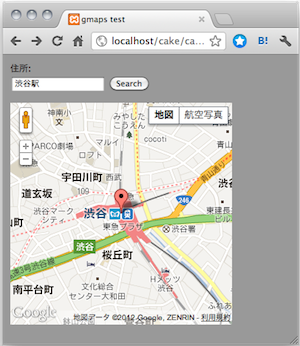
gmaps.jsでジオコーディングする2
今度は、渋谷のヒカリエの場所を最初から出すようにしよう。ヒカリエの場所にはマーカーもつけよう。
<!DOCTYPE html><html><head><meta http-equiv="Content-Type" content="text/html; charset=utf-8" /><meta name="viewport" content="initial-scale=1.0, user-scalable=no" /><title>gmaps test</title><link rel="stylesheet" type="text/css" href="./css/cake.gmaps.css" /><script type="text/javascript" src="http://ajax.googleapis.com/ajax/libs/jquery/1.4.1/jquery.min.js"></script><script type="text/javascript" src="http://maps.google.com/maps/api/js?sensor=false"></script><script type="text/javascript" src="./js/gmaps.js"></script><script type="text/javascript"> var rikkyo = '東京都 豊島区西池袋3-34-1'; $(document).ready(function(){ map = new GMaps({ div: '#map', lat: 1, lng: 1 }); GMaps.geocode({ address: rikkyo, callback: function(results, status){ if(status=='OK'){ var latlng = results[0].geometry.location; map.setCenter(latlng.lat(), latlng.lng()); map.addMarker({ lat: latlng.lat(), lng: latlng.lng() }); } } }); });</script></head><body> <div id="map"></div></body></html>
ヒカリエがうまく表示されないので立教大学を表示してみた。ページを読み込むと、立教大学の住所を経度・緯度情報に変換し、立教大学の経度・緯度情報を地図の中央にセットしている様です。
gmaps.jsでジオコーディングとオーバーレイする
<!DOCTYPE html><html><head><meta http-equiv="Content-Type" content="text/html; charset=utf-8" /><meta name="viewport" content="initial-scale=1.0, user-scalable=no" /><title>gmaps test</title><link rel="stylesheet" type="text/css" href="./css/cake.gmaps.css" /><script type="text/javascript" src="http://ajax.googleapis.com/ajax/libs/jquery/1.4.1/jquery.min.js"></script><script type="text/javascript" src="http://maps.google.com/maps/api/js?sensor=false"></script><script type="text/javascript" src="./js/gmaps.js"></script><script type="text/javascript"> var rikkyo = '東京都 豊島区西池袋3-34-1'; $(document).ready(function(){ GMaps.geocode({ address: rikkyo, callback: function(results, status){ if(status=='OK'){ var latlng = results[0].geometry.location; var map = new GMaps({ div: '#map', lat: latlng.lat(), lng: latlng.lng() }); map.drawOverlay({ lat: map.getCenter().lat(), lng: map.getCenter().lng(), content: '<div class="overlay">Rikkyo<div class="overlay_arrow above"></div></div>', verticalAlign: 'top', horizontalAlign: 'center' }); } } }); });</script></head><body> <div id="map"></div></body></html>スタイルシートは下記です。
#map{  width:300px;  height:300px;}.overlay{  display:block;  text-align:center;  color:#fff;  font-size:15px;  line-height:17px;  opacity:0.8;  background:#905;  border:solid 3px #905;  border-radius:4px;  box-shadow:2px 2px 10px #333;  text-shadow:1px 1px 1px #666;  padding:0 4px;}
.overlay_arrow{  left:50%;  margin-left:-8px;  width:0;  height:0;  position:absolute;}.overlay_arrow.above{  bottom:-7px;  border-left:8px solid transparent;  border-right:8px solid transparent;  border-top:8px solid #905;}.overlay_arrow.below{  top:-7px;  border-left:8px solid transparent;  border-right:8px solid transparent;  border-bottom:8px solid #905;}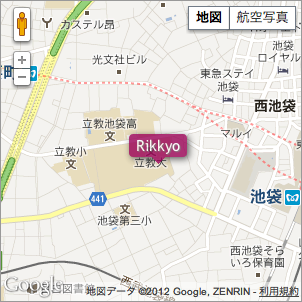
これなら企業のホームページのアクセスマッップなんかをgoogle maps apiで作るのも超お手軽ですね。
gmaps.jsでポリゴンとインフォウィンドウする
<!DOCTYPE html><html><head><meta http-equiv="Content-Type" content="text/html; charset=utf-8" /><meta name="viewport" content="initial-scale=1.0, user-scalable=no" /><title>gmaps test</title><link rel="stylesheet" type="text/css" href="./css/cake.gmaps.css" /><script type="text/javascript" src="http://ajax.googleapis.com/ajax/libs/jquery/1.4.1/jquery.min.js"></script><script type="text/javascript" src="http://maps.google.com/maps/api/js?sensor=false"></script><script type="text/javascript" src="./js/gmaps.js"></script><script type="text/javascript">$(document).ready(function(){ var map; var ll = path = g = []; ll[0] = [35.7305222 , 139.7039449]; ll[1] = [35.7127036 , 139.76327730000003]; ll[2] = [35.70935559999999 , 139.71944410000003]; path = [ll[0],ll[1],ll[2]]; g = [(ll[0][0]+ll[1][0]+ll[2][0])/3,(ll[0][1]+ll[1][1]+ll[2][1])/3]; map = new GMaps({ div: '#map', zoom: 13, lat: g[0], lng: g[1], }); polygon = map.drawPolygon({ paths: path, strokeColor: '#f09', strokeOpacity: 0.3, strokeWeight: 0.3, fillColor: '#f09', fillOpacity: 0.3 }); for(var i=0;i<ll.length;i++){ map.addMarker({ lat: ll[i][0], lng: ll[i][1], icon: './img/sugi.png', infoWindow: { content: sugi(i) } }); }});function sugi(idx){ if(idx == 0){ return '<p>立教大学</p><p>白いワイシャル着てナポリタン食べてやったぜ〜</p>'; }else if(idx == 1){ return '<p>東京大学</p><p>白いワイシャル着てミートソーススパゲッティー食べてやったぜ〜</p>'; }else{ return '<p>早稲田大学</p><p>白いワイシャル着てトマトスパゲッティー食べてやったぜ〜</p>'; }}</script></head><body> <div id="map"></div></body></html>
東京大学、早稲田大学、立教大学の場所をすぎちゃんが指し示し、この3地点を赤色の三角形で囲った様。

すぎちゃんをクリックすると、ねたをつぶやく様。